


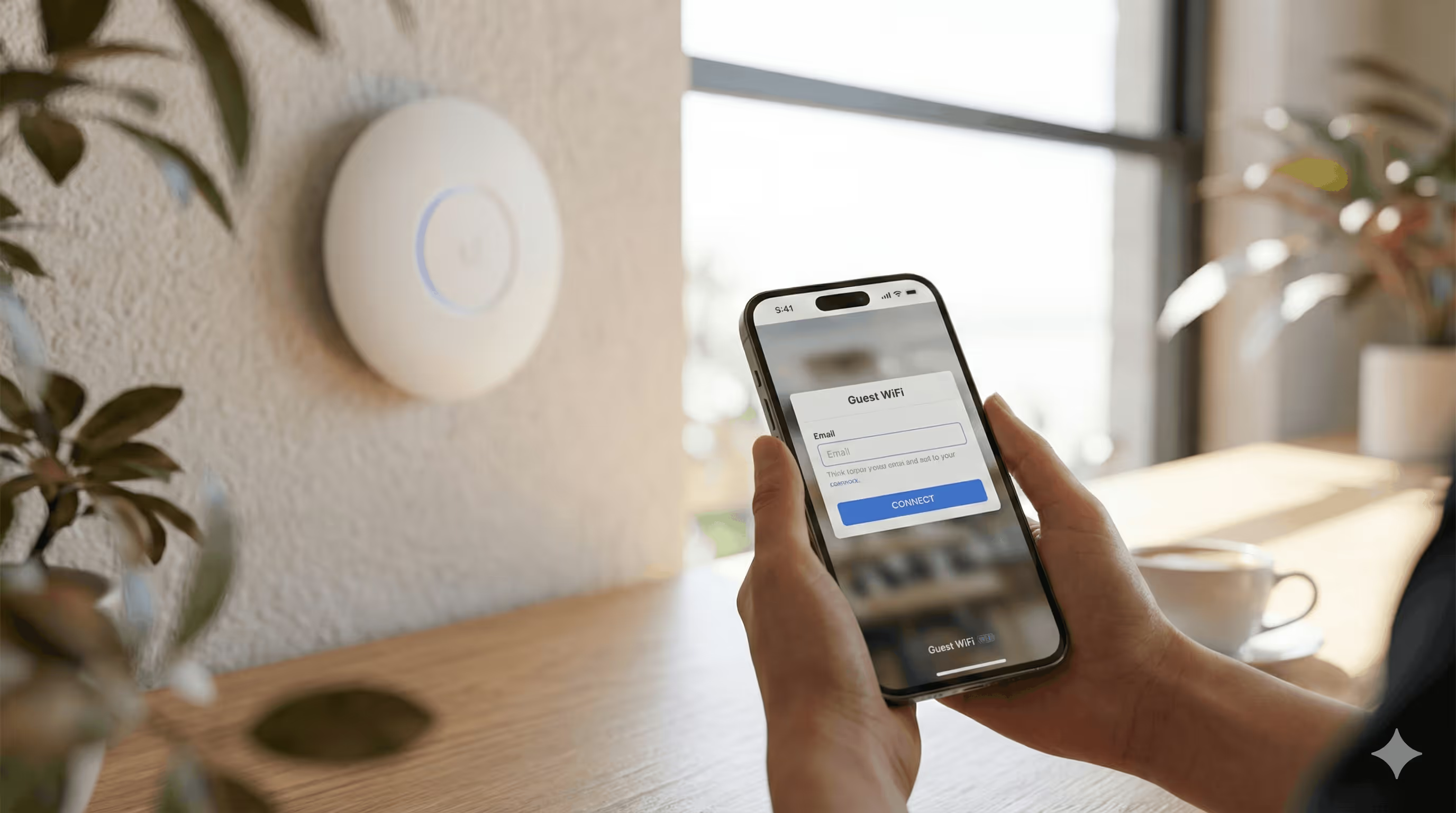
Your UniFi guest WiFi network can automatically add new contacts to your Mailchimp email list. Here is how to connect your captive portal to Mailchimp and turn every guest login into a marketing opportunity.
- UniFi's native captive portal does not integrate with Mailchimp. You need an external captive portal like Spotipo to automatically sync guest emails.
- Spotipo collects guest email addresses, names, and phone numbers on your splash page and adds them to your Mailchimp list automatically.
- The integration works with all UniFi hardware: UDM, UDM Pro, UDM SE, Cloud Key, and self hosted controllers.
- Setup takes 15 to 20 minutes with no firmware changes required.
- Once connected, every guest who logs in via your splash page gets added to your Mailchimp audience for email marketing.
Why Connect UniFi Guest WiFi to Mailchimp
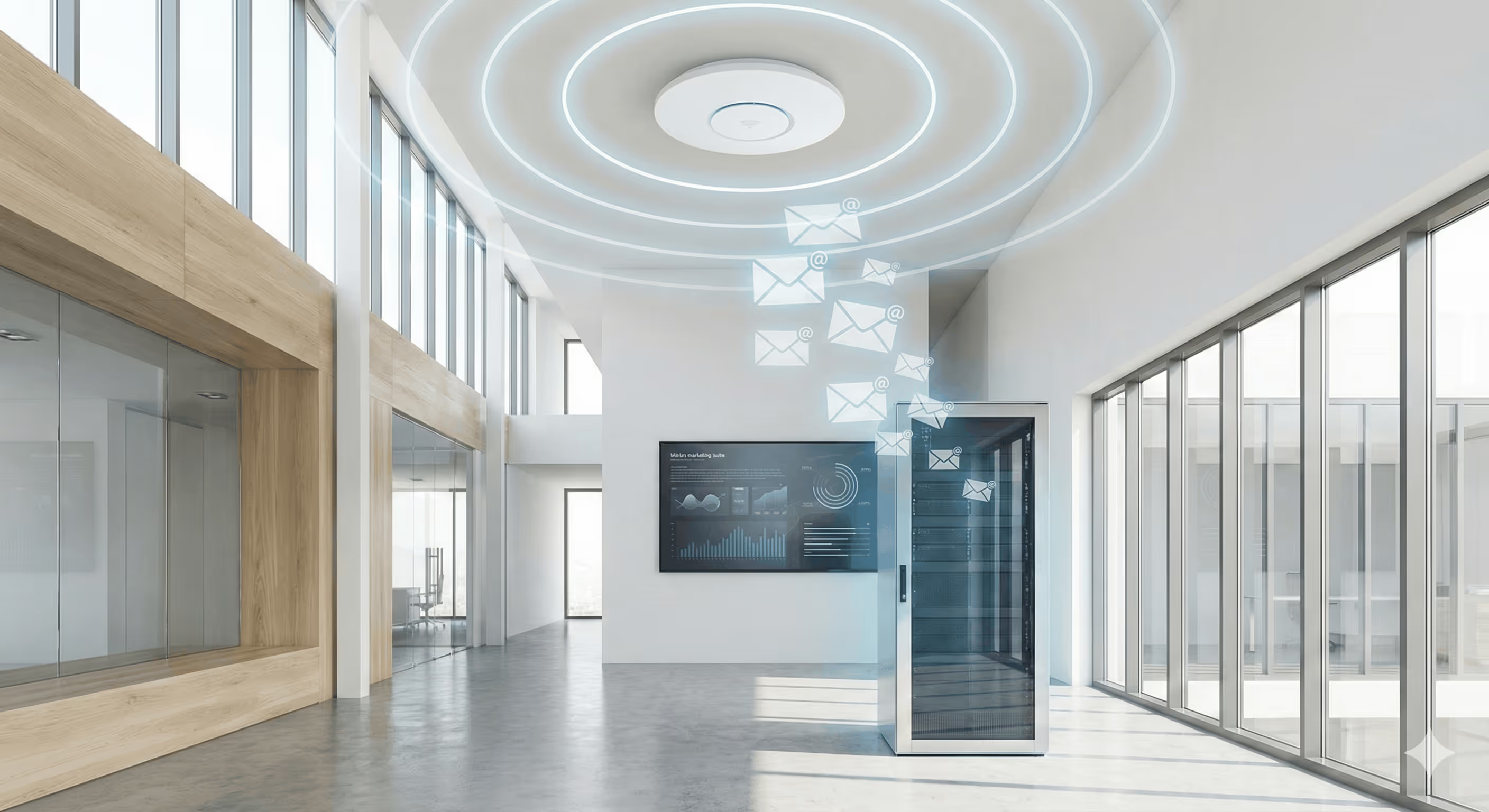
UniFi networks power guest WiFi in hotels, cafes, retail stores, coworking spaces, and offices worldwide. Ubiquiti hardware is reliable, affordable, and widely deployed. But most of these networks miss a simple opportunity: collecting guest email addresses for marketing.
When you connect your UniFi captive portal to Mailchimp, every guest who logs into your WiFi gets added to your email list. The guest provides their email address to access the internet, and that contact automatically appears in your Mailchimp audience. No manual data entry. No CSV exports. No copying and pasting between systems.
Why WiFi Collected Emails Are Valuable
These contacts have physically visited your location. They are not random website visitors or purchased list contacts. They walked through your door, connected to your network, and voluntarily provided their email in exchange for internet access. This makes them more likely to engage with your marketing and return as customers. They already know your business because they have been there.
Automated List Building
Once configured, the system runs without staff involvement. Hotel guests get added to your list at check in. Cafe visitors join while waiting for their coffee. Conference attendees become contacts during the event. Gym members sign up when they connect in the locker room. Your WiFi network builds your email list in the background while you focus on running your business.
UniFi Native Portal vs External Captive Portal
UniFi controllers include a built in captive portal for basic guest access. However, it lacks marketing integrations. Understanding this limitation is important before planning your Mailchimp setup.
UniFi Native Captive Portal Limitations
- No Mailchimp integration
- No CRM or email marketing platform sync
- Limited splash page customization
- Guest data stays in the controller with no automated export
- No social login options
What an External Captive Portal Adds
An external captive portal for UniFi, like Spotipo, connects to your existing UniFi hardware and adds marketing features:
- Mailchimp integration to automatically add guests to your email list
- Custom-branded splash pages with your logo and colors
- Email, name, and phone number collection
- Social login via Facebook
- Voucher systems and paid WiFi options
- GDPR compliant consent checkboxes
The external portal works with all UniFi hardware, including UDM, UDM Pro, UDM SE, Cloud Key Gen2, and self-hosted controllers. No firmware changes required.
How the UniFi Mailchimp Integration Works
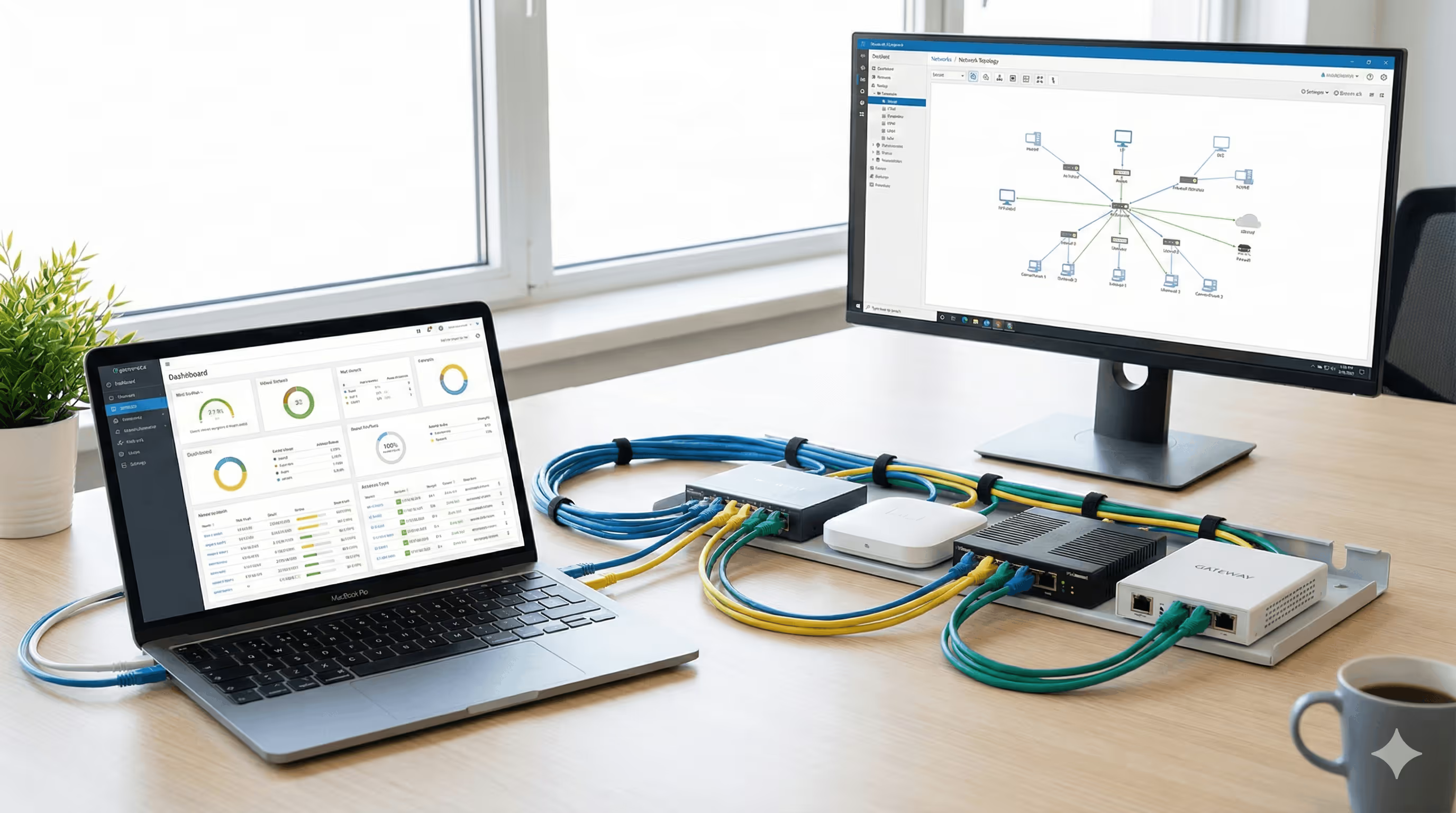
The integration connects your UniFi guest network to Mailchimp through Spotipo. Here is the flow:
- Guest connects to your UniFi guest SSID. The access point detects the new device.
- UniFi redirects to Spotipo's captive portal. The guest sees your branded splash page.
- Guest enters their email address. They can also provide their name and phone number if you configure those fields.
- Spotipo authenticates the guest with UniFi. The portal sends an API call to authorize the device.
- The guest receives internet access.
- Guest data syncs to Mailchimp. The email address (and name/phone if collected) gets added to your Mailchimp audience.
From there, you can use Mailchimp to send welcome emails, add subscribers to campaigns, or include them in your regular newsletter.
What Data Syncs to Mailchimp
Spotipo collects guest information on your splash page and adds it to your Mailchimp list. Here is what you can collect and sync:
Email Address
Required for WiFi access. This is the core data point that gets added to your Mailchimp audience.
First Name and Last Name
Optional fields you can add to your splash page. When collected, names sync to Mailchimp so you can personalize emails with merge tags like *|FNAME|*.
Phone Number
Optional field for SMS marketing. If you collect phone numbers on your splash page, they sync to Mailchimp alongside the email address.
Custom Fields
Spotipo v4.0 supports unlimited custom fields on your splash page. You can ask for the company name, room number, or any other information relevant to your business.
What This Means for Your Mailchimp Campaigns
With emails and names flowing into Mailchimp automatically, you can set up welcome automations, run promotional campaigns, or send newsletters to guests who visited your location. The integration handles data collection. What you do with those contacts in Mailchimp is up to you.
Common Setup Mistakes to Avoid
Most integration issues come from a few preventable configuration errors:
Walled Garden Misconfiguration: The walled garden lists domains guests can access before authentication. If Spotipo's portal domain is missing, guests see a blank page instead of your splash page. Add all required Spotipo domains to your UniFi pre-authorization access list. Check the Spotipo help documentation for the current list of domains to whitelist.
Wrong Authentication Type: For external captive portals, select External Portal Server in your UniFi controller. Choosing Hotspot or Simple Password bypasses the external portal, and guests will never see your Spotipo splash page.
Controller Firewall Blocking Connections: Spotipo needs to communicate with your UniFi controller to authorize devices. If your firewall blocks incoming connections, guests will complete the splash page but never get internet access. Open the required ports or use Spotipo's reverse proxy option for controllers without public IP addresses.
Self-Signed Certificate Issues: If your UniFi controller uses a self-signed SSL certificate, the API connection may fail. Either install a valid SSL certificate or configure Spotipo to accept self-signed certificates in the integration settings.
Controller Going Offline: If your UniFi controller loses power or internet, the captive portal stops working completely. Guests cannot authenticate, and no emails get collected. Use a UDM with built in controller or ensure your Cloud Key has reliable power and internet connectivity.
Testing on the Wrong Network: The captive portal only triggers on your guest SSID. If you test while connected to your main network or via Ethernet, you will not see the splash page. Always test from a mobile device connected specifically to the guest WiFi network.
.avif)
Use Cases by Industry
The UniFi Mailchimp integration works across industries. Here is how different businesses use it:
MSPs and IT Agencies
If you manage UniFi networks for clients, the Mailchimp integration becomes a value-added service. Set up each client's guest WiFi to feed their own Mailchimp list. Spotipo's white label features let you brand splash pages for each client while managing everything from one dashboard. You can offer email list building as part of your managed WiFi package, creating recurring value beyond network maintenance.
Hotels and Hospitality
Capture guest emails when they connect to the lobby or room WiFi. Use Mailchimp to send welcome emails during their stay, satisfaction surveys after checkout, and promotions for future direct bookings. Direct bookings avoid OTA commissions, making your email list a direct revenue driver. Every guest who books through your email campaign instead of a third-party platform saves you money.
Retail Stores
Collect emails from in-store visitors. Send them new arrivals, flash sales, and seasonal promotions through Mailchimp. These are customers who already visited your store, making them more likely to respond to your emails than cold contacts. Use your email list to announce new product lines, invite customers to in-store events, or share exclusive discounts.
Coworking Spaces
Add day pass users and members to your Mailchimp list automatically. Send membership upsell campaigns to day pass users who visit frequently. Promote community events, workshops, and networking sessions. Keep members informed about new amenities or location expansions.
Gyms and Fitness Centers
Collect member emails through WiFi login. Use Mailchimp to promote new classes, personal training packages, and membership renewals. Send motivational content, nutrition tips, or workout guides to keep members engaged between visits.
Splash Page Best Practices for Email Collection
Your splash page design affects how many guests provide their email. Here are proven practices:
Minimize Required Fields: The more fields you require, the lower your completion rate. Start with just an email address. You can collect names and phone numbers, but consider making them optional. Every additional required field reduces signups.
Use Clear Branding: Your splash page should look professional and match your brand. Add your logo, use your brand colors, and write copy that sounds like your business. Guests should immediately recognize they are connecting to your WiFi, not a generic network.
Explain the Value Exchange: Guests provide their email in exchange for internet access. Make this clear on your splash page. You can also mention any additional benefits, like exclusive offers or updates, that they will receive.
Include Marketing Consent: Add a checkbox for marketing consent. This is required for GDPR compliance in Europe and shows respect for guest preferences everywhere. Spotipo logs consent timestamps for your records.
Test on Mobile Devices: Most guests connect via smartphones. Test your splash page on different phone sizes to ensure forms are easy to complete and buttons are large enough to tap.
What You Can Do in Mailchimp After Setup
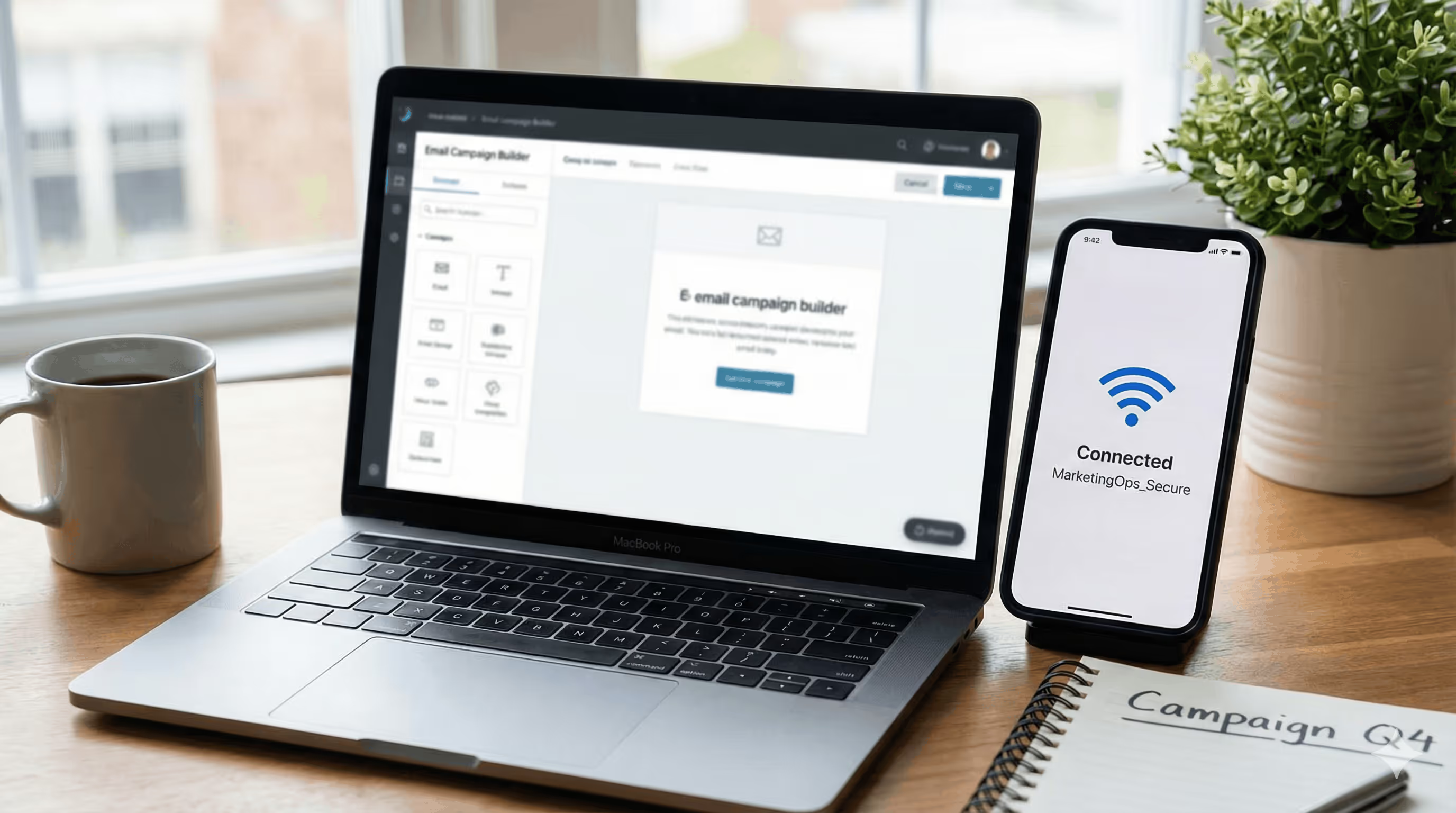
Once guest emails flow into Mailchimp, you have access to all of Mailchimp's marketing features:
Welcome Automations: Set up an automated email that sends when new subscribers join. Thank them for visiting, share a discount code, or introduce your brand. Welcome emails typically have higher open rates than regular campaigns because the recipient just interacted with your business.
Regular Campaigns: Include WiFi collected contacts in your regular newsletter and promotional emails. These subscribers join your main audience and receive whatever campaigns you send.
Audience Segmentation: Create a segment or tag in Mailchimp specifically for WiFi signups. This lets you track the performance of this acquisition channel separately. You can also send WiFi subscribers different content than contacts from other sources if that makes sense for your business.
Personalization: If you collect first names on your splash page, use them in subject lines and email content with Mailchimp merge tags. Personalized emails typically perform better than generic ones.
A/B Testing: Test different subject lines, send times, and content with your WiFi collected audience. Mailchimp's built-in testing tools help you optimize campaign performance over time.
The integration handles getting contacts into Mailchimp. What campaigns you run and how you segment your audience is entirely up to you and depends on your marketing strategy.
Frequently Asked Questions
Does UniFi's built-in captive portal support Mailchimp? No. UniFi's native portal does not integrate with Mailchimp or any email marketing platform. You need an external captive portal like Spotipo.
Which UniFi hardware is supported? All UniFi controllers: UDM, UDM Pro, UDM SE, Cloud Key Gen2, and self-hosted controllers on Linux or Docker.
What data gets added to Mailchimp? An email address is required. You can also collect and sync first name, last name, phone number, and custom fields you configure on your splash page.
Can guests log in with Facebook instead of email? Yes. Spotipo supports Facebook login. The email address from the Facebook account gets added to Mailchimp.
Is this GDPR compliant? Spotipo includes consent checkboxes on splash pages with logging. You can configure explicit marketing opt-in to meet GDPR requirements.
How long does setup take? 15 to 20 minutes. Most time is spent configuring the external portal in your UniFi controller.
Do I need to change my UniFi firmware? No. Spotipo works with your existing UniFi firmware. The integration uses the external portal API that is already built into UniFi controllers.
Can I use this with multiple UniFi sites? Yes. Spotipo supports multi-site setups. You can manage multiple UniFi sites from one Spotipo dashboard and connect each to the same or different Mailchimp audiences.
What happens if a guest is already on my Mailchimp list? Mailchimp handles duplicate detection. If the email already exists in your audience, it will not create a duplicate subscriber.
Start Building Your Email List from Guest WiFi
Your UniFi guest WiFi can do more than provide internet access. Connect it to Mailchimp through Spotipo, and every guest login becomes a new subscriber on your email list.
The setup works with your existing UniFi hardware. No firmware changes. No new access points. No complicated network reconfiguration. Spotipo connects to your UniFi controller through the external portal API and handles the Mailchimp sync automatically.
Whether you run a single location or manage UniFi networks for multiple clients, the integration scales to fit your needs. Start your free 14-day trial and connect your UniFi network to Mailchimp today. See how many guest emails you can collect in two weeks.


